Microsoft Teams now allow administrator to define policies to pin apps to their end-users (turned on by default).
This policy setting also allows administrator to disable the ‘pin app’ capability.
As remined, an app can be pinned in Teams by following these steps:
- Access the search an app function (the 3 dots – … – shown on the left rail
- search for an app and right click on it to choose Pin
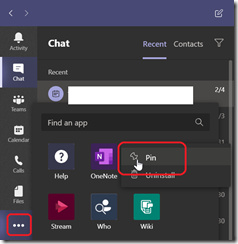
For administrators to define/update policy, logon to your Teams administration portal (https://admin.teams.microsoft.com/) and go to Teams appsSetup Policies, then either edit an existing policy or create a new one
![image_thumb[1]](https://7552374.hs-sites.com/hubfs/Imported_Blog_Media/image_thumb1-93.png "image_thumb[1]")
Finally turn off the Allow user pinning if you want to disable the feature or define the apps to be pinned to end-users
![image_thumb[2]](https://7552374.hs-sites.com/hubfs/Imported_Blog_Media/image_thumb2-74.png "image_thumb[2]")